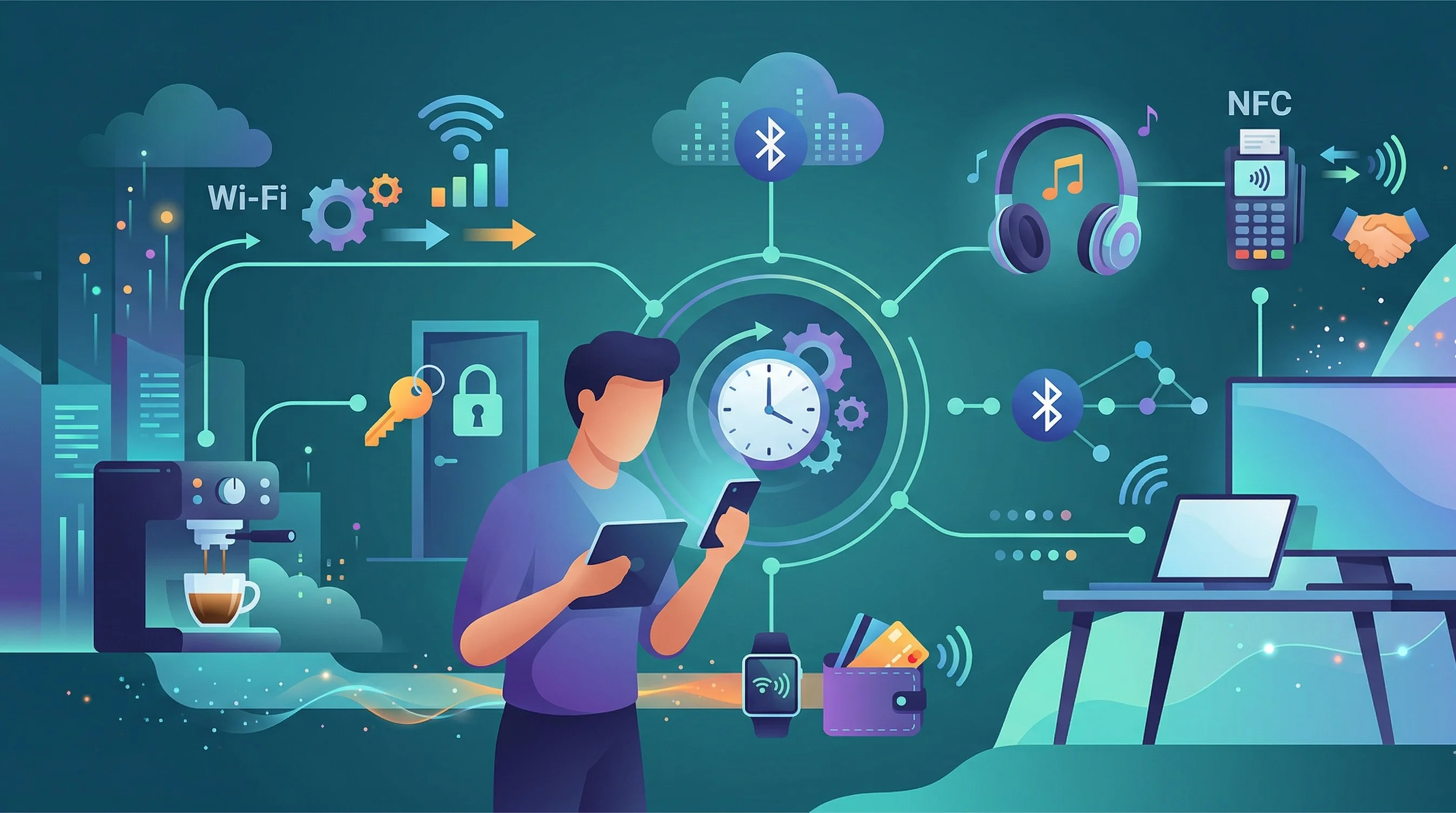
You tap your phone against a payment terminal, and it beeps. Transaction complete. No wallet. No card. No PIN. Just a tap and a gentle vibration.
Most of us do this without thinking twice. But that same invisible technology — NFC — along with Wi-Fi and Bluetooth, can do so much more than pay for coffee.
Your phone has three wireless radios that talk to the world around you: Wi-Fi, Bluetooth, and NFC. You probably use them every day. But you’re probably using about 10% of what they can actually do.
Let’s fix that.
Wi-Fi Tricks You Didn’t Know About
Share Your Wi-Fi Password Without Speaking a Word
This is the one guests always ask about — and the one you can handle without looking up your router.
On iPhone (to another iPhone/iPad/Mac):
- Both devices need Wi-Fi and Bluetooth on.
- Both people must be in each other’s Contacts.
- When they select your network, a popup appears on your phone. Tap Share Password.
On Android:
- Go to Settings > Wi-Fi and tap your connected network.
- Tap Share — a QR code appears.
- The other person scans it with their camera. Works across platforms.
Screenshot the QR code and save it. When guests arrive, just show them the picture.
Automatically Connect to the Fastest Network
If you have multiple Wi-Fi networks at home (like a main router and a mesh extender), your phone might stubbornly stick to a weaker one.
- iPhone: Go to Settings > Wi-Fi, tap the “i” next to networks you don’t want, and toggle off Auto-Join for the weaker ones.
- Android: Go to Settings > Wi-Fi > Network Preferences and enable Switch to mobile data when Wi-Fi is poor. Some phones have Intelligent Wi-Fi that automatically selects the best available network.
Use Wi-Fi Calling When Cell Signal Is Weak
If you’re in a building with great Wi-Fi but terrible cell reception, your phone can route calls through Wi-Fi instead.
- iPhone: Settings > Phone > Wi-Fi Calling. Toggle it on.
- Android: Settings > Network & Internet > Mobile Network > Wi-Fi Calling.
Your calls will sound crystal clear, even in a basement. And it uses your normal phone number — the other person won’t know the difference.
Bluetooth Tricks That Go Beyond Headphones
Connect to Multiple Devices at Once (Multipoint)
Many modern Bluetooth earbuds and headphones support multipoint — they can stay connected to your phone and your laptop simultaneously.
When a call comes in on your phone, the audio switches from your laptop to your phone automatically. Hang up, and it switches back.
Check your earbuds’ settings app (AirPods automatically switch between Apple devices; many others need it enabled manually).
Use Your Phone as a Bluetooth Remote Control
Your phone can control other devices via Bluetooth:
- iPhone: Use the Remote control in Control Center (swipe to the media card and select which device to control). Control your Apple TV, Mac, or HomePod.
- Android: Use the Google TV app to control Chromecast and Android TV devices. Samsung phones can control Samsung TVs natively.
Lost your TV remote between the couch cushions? Your phone’s got it covered.
Rename Your Bluetooth Devices for Clarity
Tired of connecting to “LE-Bose QC45 #3” or “JBL Flip 5 2A:3F”? Rename them.
- iPhone: Go to Settings > Bluetooth, tap the “i” next to the device, and tap the name to edit it.
- Android: Go to Settings > Connected Devices, tap the connected device, and select Rename (or tap the gear icon > Edit name).
Name them “Living Room Speaker,” “Car Stereo,” “Gym Earbuds.” You’ll never connect to the wrong device again.
Find Lost Bluetooth Devices
Left your earbuds somewhere? Your phone can help find them.
- iPhone: Open the Find My app. AirPods and supported Bluetooth accessories show their last known location on a map. AirPods Pro/Max can play a sound.
- Android: Open Settings > Connected Devices > Find My Device or use Google’s Find My Device network. Some earbuds (Pixel Buds, Samsung Buds) show their last known location in their companion apps.
NFC Tricks — The Most Ignored Radio on Your Phone
NFC (Near Field Communication) is the technology behind tap-to-pay. But it can do a lot more — and most people have never explored it.
Tap to Pay — Everywhere
If you’re not using contactless payment yet, start today. It’s faster, more secure (your card number is never shared), and works almost everywhere.
- iPhone: Set up Apple Pay in the Wallet app. Double-click the side button to pay.
- Android: Set up Google Wallet. Unlock your phone and hold it near the terminal.
Read NFC Tags in the Real World
NFC tags are small, cheap stickers or cards that your phone can read with a tap. They’re found in:
- Museum exhibits — tap for information
- Smart posters and ads — tap to open links
- Business cards — tap to save contact info
- Product packaging — tap for authentication or more info
Just hold your phone near an NFC tag. It reads automatically — no app needed. Works the same way — hold the phone near the tag.
Program Your Own NFC Tags (This Is Where It Gets Fun)
Buy a pack of NFC sticker tags online (they cost about $1 each). Then program them to trigger actions when you tap your phone.
Use cases:
- On your nightstand: Tap to set your alarm, enable Sleep Focus, and turn off the lights.
- On your desk: Tap to open a work playlist, silence notifications, and launch your task manager.
- In your car: Tap to start navigation home, turn on Bluetooth, and launch your music app.
- By the front door: Tap to check the weather, start a timer (“back in 30 minutes”), or text your partner “heading home.”
How to Write NFC Tags
- iPhone: Use the Shortcuts app. Create an automation triggered by an NFC tag, then tap the tag to program it.
- Android: Download NFC Tools (free app). Write URLs, text, or app commands to any writable NFC tag.
This is genuinely one of the most underrated features in modern phones. A $1 sticker becomes a one-tap button for anything.
Combining All Three: Smart Automations
The real magic happens when you combine Wi-Fi, Bluetooth, and NFC triggers with automation.
On iPhone (Shortcuts App)
Go to Shortcuts > Automation and create automations triggered by:
- Connecting to a specific Wi-Fi network (e.g., “When I connect to Office-WiFi, turn on Work Focus mode”)
- Connecting to a Bluetooth device (e.g., “When I connect to Car Stereo, open Maps and play my driving playlist”)
- Tapping an NFC tag (e.g., “When I tap the tag on my nightstand, set alarm for 7 AM and turn on Sleep Focus”)
On Android (Google Assistant Routines + Tasker)
- Google Assistant Routines: Set up routines triggered by time, voice commands, or sunrise/sunset. Combine music, smart home controls, and information.
- Tasker (advanced): Create profiles triggered by Wi-Fi connection, Bluetooth connection, NFC tap, location, or time. Virtually unlimited possibilities.
- Samsung Bixby Routines: Create “If this, then that” automations using Wi-Fi, Bluetooth, location, and time triggers.
When I connect to my home Wi-Fi + it’s after 6 PM → switch to Personal Focus → turn on smart lights → set volume to 50%.
Quick Reference: What Each Radio Does Best
| Feature | Wi-Fi | Bluetooth | NFC |
|---|---|---|---|
| Range | Up to 150 feet | Up to 30 feet | 1-2 inches |
| Speed | Very fast | Moderate | Instant (small data) |
| Best for | Internet, calls, file transfers | Audio, wearables, accessories | Payments, tags, quick triggers |
| Battery impact | Moderate | Low | Negligible |
| Security | Encrypted (WPA3) | Paired connections | Tap-only range = inherently secure |
Final Thoughts: Three Invisible Radios, Infinite Possibilities
Here’s what most people miss: Wi-Fi, Bluetooth, and NFC aren’t just connection methods. They’re triggers. They’re ways to make your phone aware of where you are, what you’re near, and what you’re doing — and respond automatically.
Your phone already knows when you’re home (Wi-Fi), when you’re in your car (Bluetooth), and what you’re tapping (NFC). The question is: are you using that intelligence, or ignoring it?
A $1 NFC tag on your nightstand can replace a five-step bedtime routine. A Bluetooth trigger in your car can set up your entire driving experience. A Wi-Fi-based automation can transform your phone the moment you walk into the office.
The smartest thing about your smartphone isn’t the screen, the camera, or the processor. It’s the invisible radios connecting it to the world — and the automations you build on top of them.
Go buy a $10 pack of NFC tags. Program one. Stick it on your nightstand. Tap it tonight before bed. You’ll never go back to doing that routine manually.