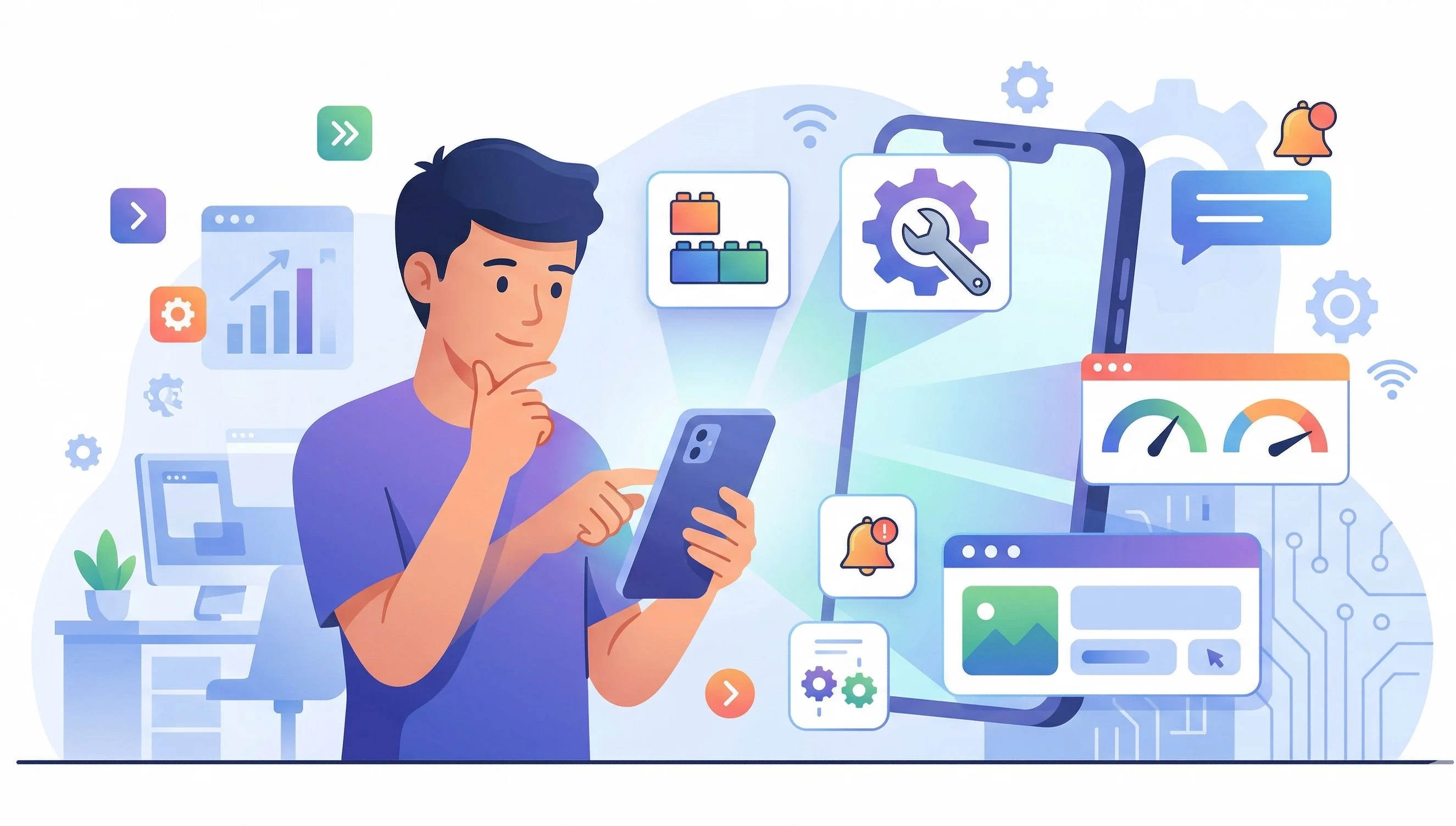
You spend four to seven hours a day on your phone. That’s not a guess — that’s what the data says. And if you’re being honest with yourself, a lot of that time is spent doing nothing productive at all. Scrolling through feeds you’ve already seen. Checking apps you just closed five seconds ago. Watching the same reel for the third time.
But here’s the twist: buried inside that same phone is a set of features so useful, so well-designed, that they could genuinely simplify your life — if you ever bothered to look.
You’ve been scrolling past the good stuff. Let’s stop and actually use it.
1. Focus Modes — Your Phone’s Best-Kept Secret
Do Not Disturb is old news. Focus modes are the evolved version — and they’re life-changing when set up right.
On iPhone
Go to Settings > Focus and create custom modes:
- Work Mode: Only calls from your team and notifications from Slack and email get through. Social media? Silent.
- Personal Mode: Reverse it. Work apps go quiet. Only friends and family reach you.
- Sleep Mode: Everything goes dark. Only emergency calls break through.
The magic: each Focus mode can have its own Home Screen and Lock Screen. So when you enter Work mode, your phone literally shows you only work apps. No Instagram. No TikTok. No temptation.
On Android
Go to Settings > Digital Wellbeing > Focus Mode. Select which apps are paused. Schedule it for work hours or activate it manually.
Also set up Do Not Disturb schedules in Settings > Sound > Do Not Disturb with smart exceptions for specific contacts.
Your phone works instead of That constant pull of notifications? You control it now.
2. Screen Time Reports — The Mirror You’re Avoiding
Most people look at their Screen Time report once, feel a wave of guilt, and never open it again. But this tool isn’t meant to shame you — it’s meant to inform you.
On iPhone
Go to Settings > Screen Time. Look at:
- Daily average usage
- Most used apps ranked by time
- Pickups — how many times you unlocked your phone and why
- Notifications — which apps interrupt you the most
On Android
Go to Settings > Digital Wellbeing & Parental Controls. Same breakdown — total time, app-by-app usage, unlocks, notifications received.
If you’re unlocking your phone 100+ times a day, it’s not because you’re productive. It’s because you’re restless. That number alone can rewire how you think about your phone habit.
3. The Built-In Password Manager You’re Ignoring
Still typing passwords from memory? Still using the same password for everything? Your phone has a full-featured, encrypted, auto-filling password manager — and you’re probably not using it to its potential.
On iPhone
Go to Settings > Passwords.
- It auto-generates strong passwords when you sign up for new accounts.
- It autofills saved credentials in Safari and apps.
- It flags compromised, weak, or reused passwords under Security Recommendations.
- It supports passkeys — the passwordless future.
- With iOS 17+, you can create shared password groups for families.
On Android
Go to Settings > Passwords & Accounts > Google > Manage Your Google Account > Security > Password Manager (or just visit passwords.google.com).
- Auto-generates and saves passwords.
- Autofills in Chrome and supported apps.
- Runs a Password Checkup to flag compromised or reused credentials.
- Supports passkeys.
The built-in tools are genuinely excellent — and unlike third-party apps, they’re free and integrated into your login flow.
4. Offline Maps — Navigate Without Data
You’re driving to a cabin in the mountains. Cell signal drops. Your GPS goes blank. You’re guessing at turn-offs in the dark.
This doesn’t need to happen.
On iPhone (Apple Maps)
Tap your profile icon in Apple Maps, select Offline Maps, and download the area you need. Your phone will navigate, search, and provide ETAs — all without internet.
On Android (Google Maps)
Search for a region, tap the name, then select Download. Google Maps gives you turn-by-turn navigation, search, and driving directions — completely offline.
Download before:
- Road trips through rural areas
- International travel (avoid roaming data charges)
- Camping or hiking trips
- Visiting areas with spotty coverage
I download the maps of every city before I travel there. It’s become automatic.
5. Bedtime / Wind Down Mode — Better Sleep Starts With Your Screen
The blue light argument has been debated. But here’s what’s not debatable: scrolling through stressful news and stimulating social media right before bed makes it harder to fall asleep. Your phone has tools specifically designed to break that cycle.
On iPhone
Go to Settings > Focus > Sleep. When activated:
- The Lock Screen simplifies
- Notifications are silenced
- Selected apps are dimmed or hidden
- It can integrate with your Sleep schedule in the Health app
On Android
Go to Settings > Digital Wellbeing > Bedtime Mode:
- Screen turns to grayscale (removes the dopamine-triggering colors)
- Do Not Disturb activates
- Night Light (warm screen tone) turns on automatically
- It can play calming sounds from the Clock app
Grayscale mode alone is surprisingly effective. Your phone looks boring in black and white. That’s the point. You stop picking it up.
6. Visual Look Up — Point Your Camera and Learn
Your phone can identify plants, dog breeds, landmarks, art, food, and insects — just by looking at them.
On iPhone (Visual Look Up)
Take a photo of something, then tap the info icon (the “i” with sparkles) or the icon that appears over recognized subjects. It tells you:
- What breed of dog you’re looking at
- What species of plant you just photographed
- What landmark is in the background
- What dish is on the plate
On Android (Google Lens)
Open Google Lens from the camera, Google app, or Google Photos. Point at anything:
- Plants, animals, insects — identified
- Products — found online with prices
- Math problems — solved
- Text — copied, translated, or searched
I pointed my phone at a tree in my yard and discovered it was a Japanese maple. I’d lived there three years without knowing.
7. Spatial Audio & Head Tracking — Immersive Sound You Haven’t Tried
If you own AirPods Pro, AirPods Max, or quality Bluetooth earbuds with a compatible Android phone, you have a feature that makes movies and music feel completely different.
On iPhone
Go to Settings > [Your AirPods] > Spatial Audio. Turn it on with Head Tracking.
Now when you watch a movie, the sound stays fixed in space — turn your head left, and the audio seems to stay coming from where the screen is. It’s like having a home theater in your ears.
On Android
Samsung Galaxy Buds have 360 Audio with head tracking in the Galaxy Wearable app. Sony earbuds support it through the Headphones Connect app.
Most people buy their earbuds, pair them, and never touch the settings. That means they’re missing the single best feature those earbuds offer.
8. Widgets — Not Just for Weather
Widgets have been on Android for over a decade and on iPhone since iOS 14. But most people either ignore them or slap a weather widget on and call it done.
Use widgets as a command center:
- Calendar widget: See your next three events without opening the app.
- Reminders/Tasks widget: Your to-do list, always visible.
- Battery widget: Monitor your phone, watch, and earbuds at a glance.
- Shortcuts widget (iPhone): One-tap buttons for specific actions — call a contact, navigate home, start a playlist.
- Fitness widget: Steps, rings, workout summary — right on your home screen.
- Notes widget (iPhone): Pin a note to your home screen for instant access.
9. Notification Summary — Stop the Constant Interruption
Not every notification deserves your immediate attention. Most don’t.
On iPhone
Go to Settings > Notifications > Scheduled Summary. Choose the apps you want bundled (news, social media, shopping) and set delivery times — like 8 AM and 6 PM.
Non-urgent notifications arrive in quiet batches instead of pinging you all day long.
On Android
Go to Settings > Notifications. Set notifications from specific apps to Silent delivery — they show in the shade but don’t buzz, ring, or pop up.
You go from being interrupted 80 times a day to being interrupted by things that actually matter. Everything else waits.
10. Shortcuts (iPhone) & Routines (Android) — Automate the Boring Stuff
This is the feature with the highest ceiling and the lowest adoption. Automation sounds complicated, but the basics are simple.
On iPhone (Shortcuts App)
- “Good Morning” shortcut: One tap and your phone reads the weather, turns off Do Not Disturb, plays your morning playlist, and opens your calendar.
- “Heading Home” shortcut: Sends a text to your partner, starts navigation, and plays a podcast.
- Automation triggers: Run shortcuts automatically when you arrive at a location, connect to a specific Wi-Fi, or plug in your charger.
On Android (Google Assistant Routines)
- Open Google Assistant > Routines.
- Create a Morning routine that tells you the weather, reads your calendar, adjusts smart home devices, and plays the news.
- Trigger routines by voice command, time, or location.
You don’t need to be a programmer. Start with one automation. Then another. Before long, your phone is doing things for you before you even ask.
Final Thoughts: Your Phone Has More to Give — If You Let It
The problem was never your phone. The phone has been ready. The problem is that scrolling is easy and exploring is not.
It’s easier to open the same five apps and fall into the same loops than to spend ten minutes in Settings discovering something new. But those ten minutes could save you ten hours. They could help you sleep better, type faster, stay safer, and stop being a slave to notifications.
Your phone is a tool, not a toy. The moment you start treating it like one, everything changes.
Stop scrolling. Start using. The best features on your phone are the ones you haven’t found yet.
If this made you rethink even one thing about how you use your phone, pass it along. Someone you know is still swiping through seven home screens to find the Calculator.