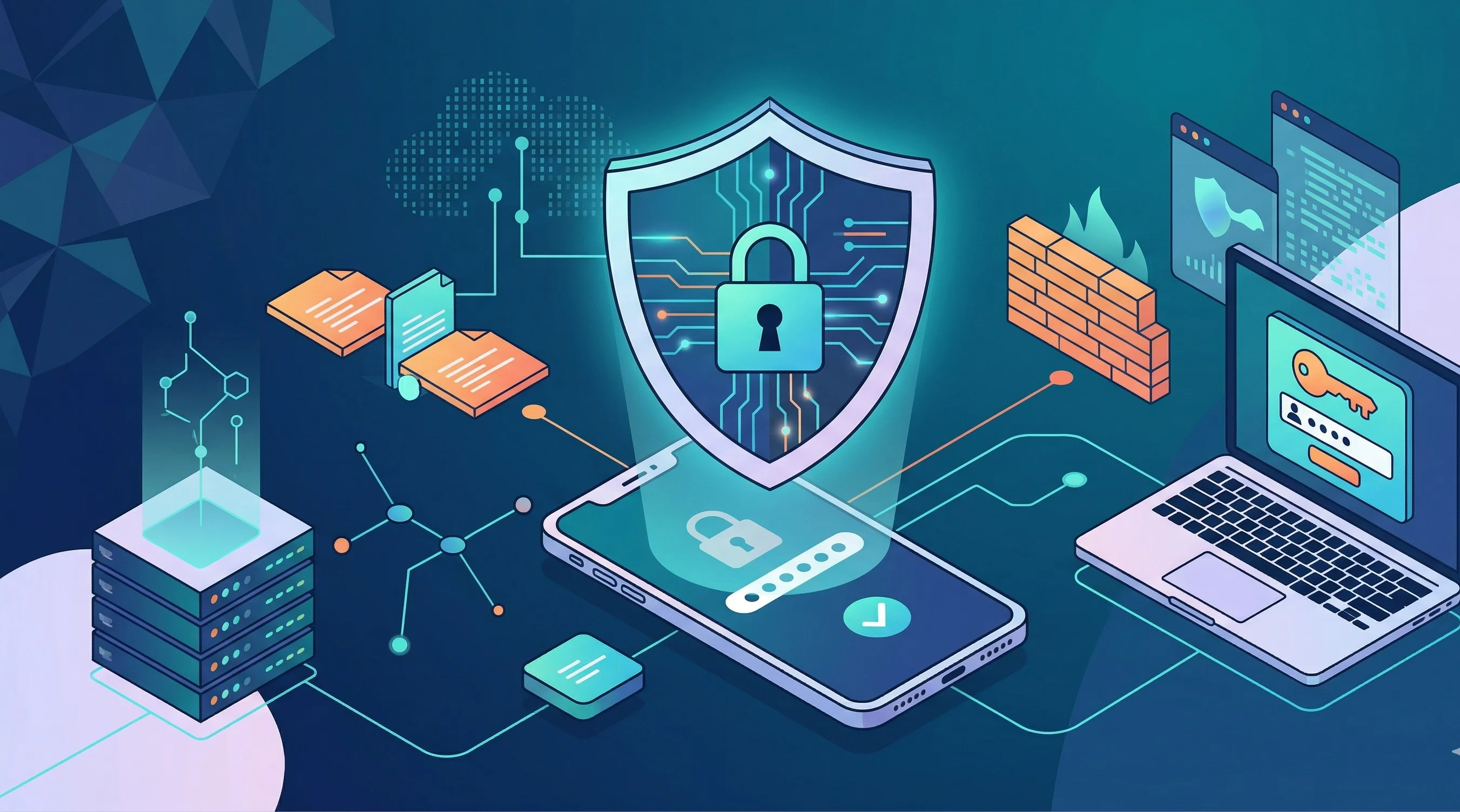
Passwords alone are no longer enough. Data breaches expose billions of credentials every year, and if you’ve reused a password even once, attackers can access multiple accounts with a single leaked login. Two-factor authentication (2FA) adds a second verification step that stops the vast majority of unauthorized access — even when your password is compromised.
How Two-Factor Authentication Works
After entering your password, 2FA requires a second piece of evidence that proves you are who you claim to be. This second factor typically falls into one of three categories: something you know (a PIN), something you have (your phone or a security key), or something you are (a fingerprint or face scan). The most common implementations use time-based codes or push notifications sent to your phone.
Authenticator Apps Are Better Than SMS
SMS-based 2FA — where you receive a text message with a code — is better than nothing, but it has known vulnerabilities. Attackers can intercept SMS messages through SIM-swapping attacks, where they convince your carrier to transfer your number to their SIM card. Authenticator apps like Google Authenticator, Authy, or Microsoft Authenticator generate codes locally on your device, making them immune to SIM-swapping.
Security Keys Are the Gold Standard
Hardware security keys like YubiKey or Google Titan provide the strongest form of 2FA. You plug the key into your USB port (or tap it via NFC) to authenticate. Phishing is nearly impossible because the key cryptographically verifies the website’s identity — a fake login page won’t trigger the key. If you protect high-value accounts (email, banking, cloud storage), a security key is worth the investment.
Which Accounts to Prioritize
Enable 2FA on these accounts first, in order of importance:
- Email — your email is the recovery method for almost every other account. If an attacker controls your email, they can reset passwords everywhere.
- Banking and financial services — direct access to your money.
- Cloud storage — Google Drive, iCloud, Dropbox often contain sensitive documents and photos.
- Social media — compromised social accounts are used for impersonation and scams targeting your contacts.
- Password manager — this is the vault that protects everything else.
Save Your Backup Codes
When you enable 2FA, most services provide one-time backup codes for emergency access if you lose your phone. Store these codes somewhere secure and offline — printed on paper in a safe, or in an encrypted file. Do not store them in the same password manager they’re meant to bypass.
What If You Lose Your Phone?
This is the most common concern about 2FA, and it’s manageable with preparation. Use an authenticator app that supports cloud backup (like Authy), keep backup codes in a secure location, and register a secondary device when possible. The minor inconvenience of recovery is far less painful than dealing with a compromised account.
The Five-Minute Setup
Enabling 2FA takes about five minutes per account. Go to the security settings of each service, look for “Two-Factor Authentication” or “Two-Step Verification,” and follow the prompts. In five minutes, you’ve made your account orders of magnitude harder to breach.
Avoid Push Fatigue
Some services use push approvals instead of numeric codes. They are convenient, but they can train you to tap “approve” without thinking. Attackers exploit this with repeated login attempts, hoping you accept one notification just to make it stop.
Only approve a push notification when you are actively logging in. If a prompt appears unexpectedly, deny it, change the account password, and check recent security activity. Number matching, where the login screen shows a code you must type into the authenticator app, is safer than a simple yes-or-no prompt.
Recovery Planning Matters
Strong authentication can lock attackers out, but it can also lock you out if recovery is sloppy. Keep backup codes offline, add a second trusted authentication method when the service supports it, and make sure your password manager account itself has a recovery plan.
Do not rely on one phone as the only way into every account. Phones break, get stolen, and get factory reset. A printed backup code sheet in a safe place, or a spare security key stored separately, turns a disaster into an inconvenience.
What I Would Do In Practice
I would use a password manager plus authenticator-app 2FA for most accounts, then add hardware security keys for email, password manager, financial accounts, and cloud storage. I would avoid SMS when better options are available, but I would still use SMS instead of leaving an account protected only by a password.
The goal is not maximum complexity. The goal is making account takeover expensive enough that leaked passwords no longer decide your security.
Teach Your Future Self
After enabling 2FA, leave yourself a short recovery note in a safe place. It should say which authenticator app you use, where backup codes are stored, and which accounts have security keys. Do not include the codes in the note unless the storage location is secure.
Review the setup once a year. Remove old phones, revoke lost devices, regenerate backup codes if you think they were exposed, and confirm your most important accounts still use the strongest available method.