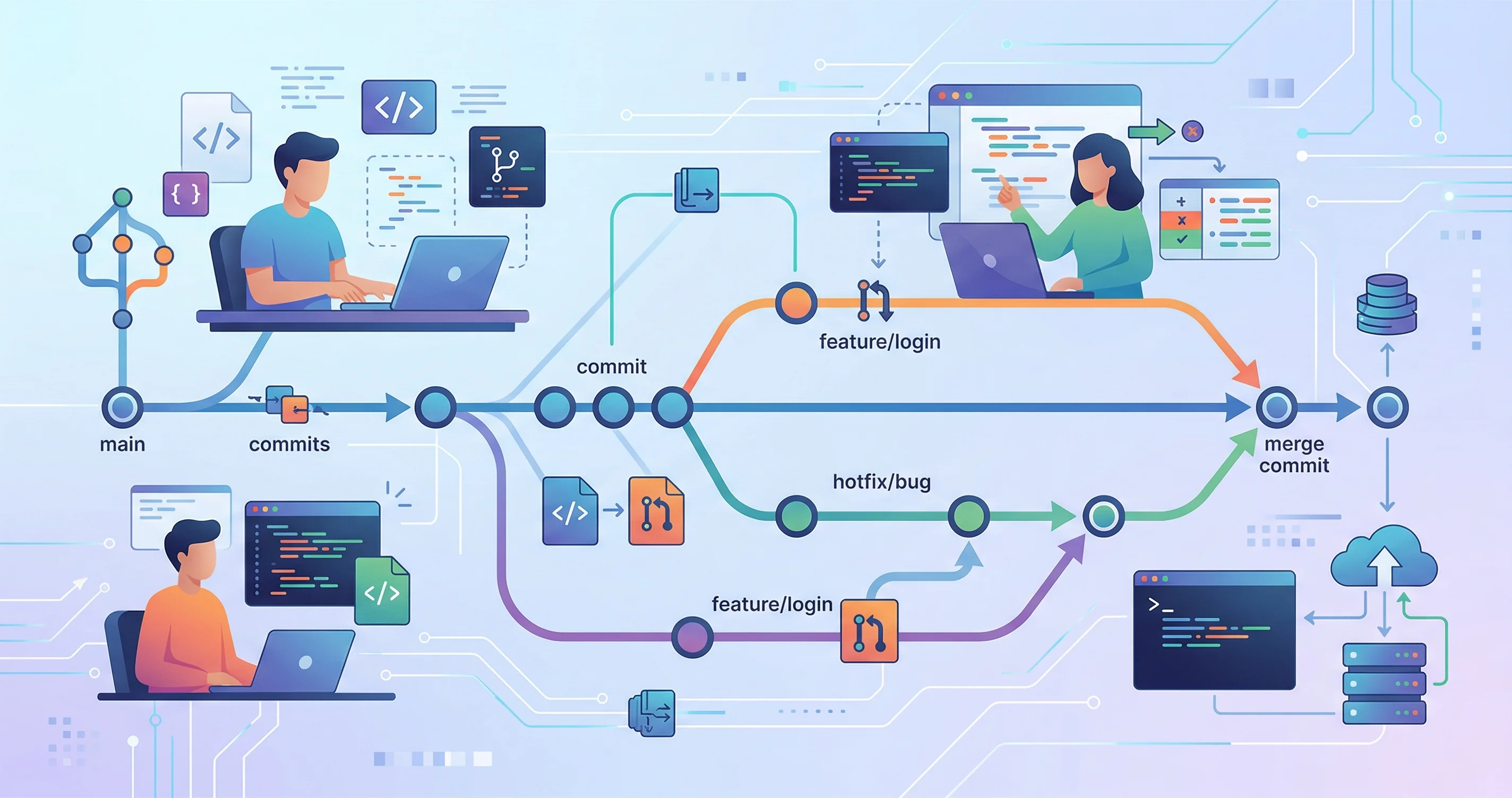
Understanding Git
Git is a distributed version control system that tracks changes to your code over time. It lets you experiment freely, collaborate with others, and recover from mistakes. Understanding Git is one of the most valuable skills a developer can have.
Core Concepts
Before diving into commands, understanding these concepts makes everything else click:
- Repository (repo) — A directory tracked by Git. It contains your project files and the entire history of changes.
- Commit — A snapshot of your files at a specific point in time. Each commit has a unique hash (like
a3f8c12) and a message describing the change. - Branch — A parallel line of development. The default branch is usually called
mainormaster. Branches let you work on features without affecting the main codebase. - Remote — A copy of your repository hosted elsewhere, typically on GitHub, GitLab, or Bitbucket.
Essential Commands
# Initialize a new repository
git init

# Clone an existing repository
git clone https://github.com/user/repo.git

# Check the status of your working directory
git status

# Stage changes for commit
git add filename.txt   # Stage a specific file
git add .              # Stage all changes

# Commit staged changes
git commit -m "Add user authentication feature"

# View commit history
git log --oneline
Branching and Merging
# Create and switch to a new branch
git checkout -b feature/user-login

# List all branches
git branch

# Switch to an existing branch
git checkout main

# Merge a branch into the current branch
git merge feature/user-login

# Delete a branch after merging
git branch -d feature/user-login
Working With Remotes
# Add a remote
git remote add origin https://github.com/user/repo.git

# Push your branch to the remote
git push origin feature/user-login

# Pull the latest changes from the remote
git pull origin main

# Fetch changes without merging
git fetch origin
Undoing Mistakes
Git makes it safe to experiment because you can always undo:
# Discard unstaged changes in a file
git checkout -- filename.txt

# Unstage a file (keep changes)
git reset HEAD filename.txt

# Undo the last commit (keep changes staged)
git reset --soft HEAD~1

# View what changed in the last commit
git show HEAD
Best Practices
- Commit early and often — Small, focused commits are easier to review and revert than large, monolithic ones.
- Write meaningful commit messages — Use the imperative mood: “Fix login redirect bug” not “Fixed bug.”
- Never force-push to shared branches — Rewriting history on
mainor shared feature branches causes problems for collaborators. - Use
.gitignore— Keep sensitive files (API keys,.env) and generated artifacts (node_modules, build output) out of your repository.
Git has a learning curve, but investing time to truly understand branching and history will make you a significantly more effective developer.
A Practical Mental Model
Git is easier when you separate three places: the working tree, the staging area, and the repository history. The working tree is the files you are editing. The staging area is the next snapshot you are preparing. The repository history is the sequence of commits already recorded.
Most confusion comes from not knowing which of those places a command affects. git add moves changes into the staging area. git commit records the staged snapshot. git restore changes the working tree. git reset can affect staging, history, or both depending on flags, so treat it with more caution.
Daily Workflow
A simple daily loop is enough for most development:
- Start with
git status. - Create or switch to a feature branch.
- Make one focused change.
- Review with
git diff. - Stage intentionally with
git add. - Review staged changes with
git diff --staged. - Commit with a message that explains why.
That loop prevents messy commits because you review before and after staging. It also makes code review easier because each commit has a purpose.
Branches Are Cheap
Create branches freely. A branch is just a movable pointer to a commit, not a full copy of the project. Use branches to isolate experiments, bug fixes, and features. If an experiment fails, delete the branch. If it works, merge it.
Name branches for intent: fix/login-redirect, docs/docker-setup, feature/search-index. Good names make history easier to scan and help teammates understand what a branch is for before opening the diff.
Common Mistakes
Do not commit secrets. Add .env, local credentials, generated files, and dependency folders to .gitignore before they appear in history. If a secret has already been committed, deleting it in a later commit is not enough. Rotate the secret.
Do not force-push shared branches unless your team explicitly expects it. Rewriting history is normal on a private feature branch, but disruptive on branches other people use.
What I Would Do In Practice
I would teach Git through inspection first. Learn status, diff, log, and show before advanced history rewriting. Once you can see what Git knows, the commands that change history become less mysterious.
The goal is not memorizing every command. The goal is understanding snapshots, branches, and review habits well enough that Git becomes a safety net instead of a source of anxiety.
How To Recover Confidence
When Git feels confusing, stop changing history and inspect. git status tells you what is modified, staged, or untracked. git diff shows unstaged changes. git diff --staged shows what will go into the next commit. git log --oneline --decorate --graph --all shows where branches point.
Before risky operations, create a temporary branch or tag. Branches are cheap, and they give you a return point if an experiment goes badly. You can also use git stash for short-lived work, but do not let stashes become a hidden backlog.
Most Git confidence comes from reviewing before committing and committing before experimenting. If the current state is valuable, save it. Then try the scary thing on a branch where recovery is simple.
Internal Links To Learn Next
Once the fundamentals feel comfortable, study branching strategies, rebasing, and collaborative pull request workflows. Those topics build on the same foundation: snapshots, branch pointers, and deliberate review.
Do not jump to advanced commands because they look professional. A developer who checks status, reads diffs carefully, writes clear commits, and keeps branches focused is already using Git well. Advanced history tools are helpful only when the basics are steady.