What Is Docker?
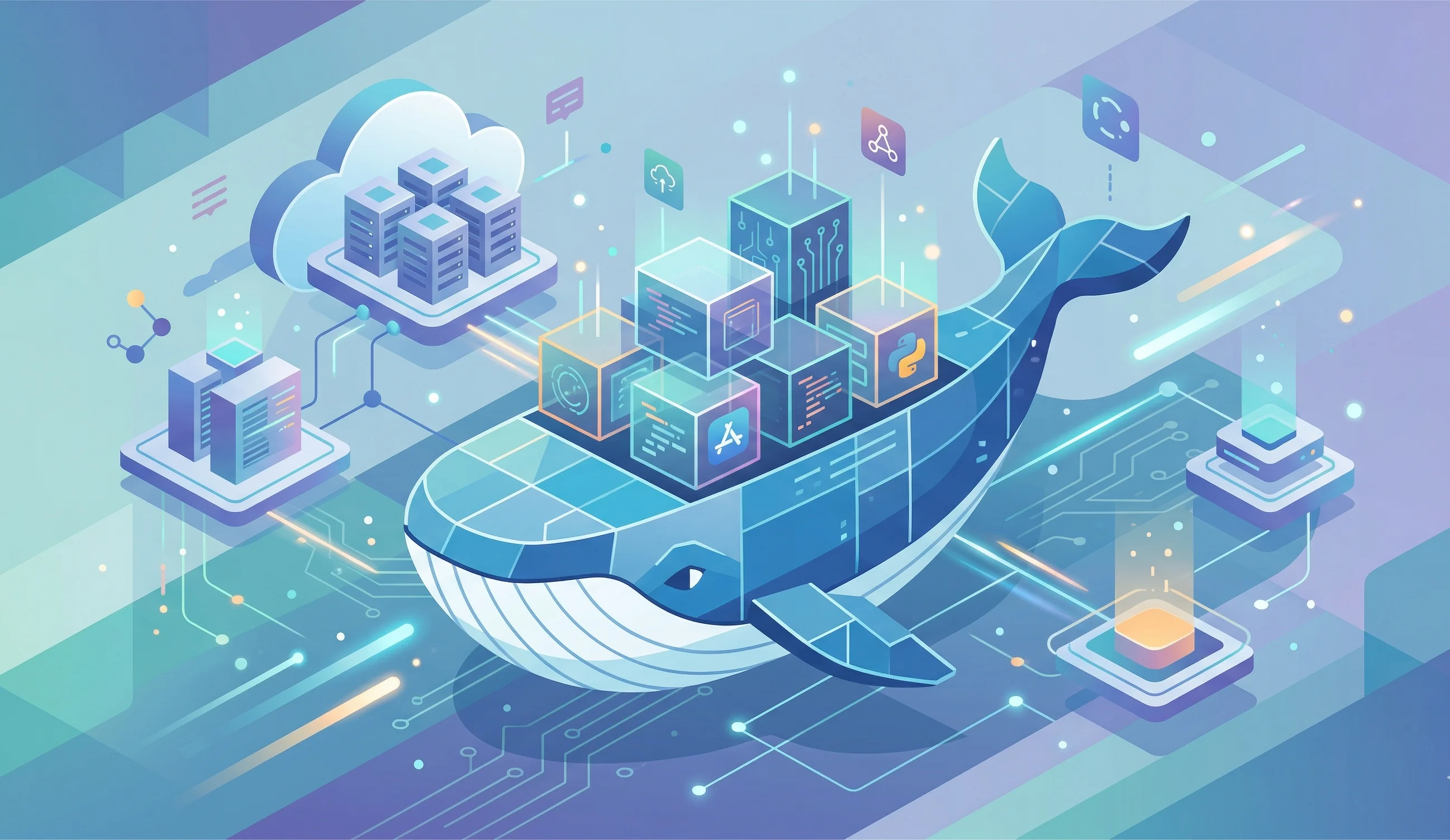
Docker is a platform for packaging applications into containers — lightweight, portable units that include everything needed to run your app: code, runtime, libraries, and configuration. Containers run identically on any machine that has Docker installed, eliminating the classic “it works on my machine” problem.
Key Concepts
- Image — A read-only template used to create containers. Think of it as a recipe. Images are built from a
Dockerfile. - Container — A running instance of an image. You can run many containers from the same image.
- Registry — A storage location for images. Docker Hub is the default public registry.
- Volume — A way to persist data outside the container’s lifecycle.
- Network — Virtual networks that allow containers to communicate with each other.
Essential Docker Commands
# Pull an image from Docker Hub
docker pull node:20-alpine

# List downloaded images
docker images

# Run a container interactively
docker run -it node:20-alpine sh

# Run a container in the background (detached)
docker run -d -p 3000:3000 my-app

# List running containers
docker ps

# List all containers (including stopped)
docker ps -a

# Stop a running container
docker stop container-id

# Remove a container
docker rm container-id

# View container logs
docker logs container-id
Writing a Dockerfile
A Dockerfile defines how your image is built:
# Start from an official base image
FROM node:20-alpine

# Set the working directory inside the container
WORKDIR /app

# Copy dependency files first (better layer caching)
COPY package*.json ./

# Install dependencies
RUN npm ci --only=production

# Copy the rest of the application
COPY . .

# Expose the port the app listens on
EXPOSE 3000

# Command to run when container starts
CMD ["node", "server.js"]
Build and run your image:
# Build an image with a tag
docker build -t my-app:latest .

# Run the image
docker run -p 3000:3000 my-app:latest
Docker Compose
For applications with multiple services (app + database + cache), Docker Compose orchestrates them with a single file:
# docker-compose.yml
services:
  app:
    build: .
    ports:
      - "3000:3000"
    environment:
      - DATABASE_URL=postgres://user:pass@db:5432/mydb
    depends_on:
      - db

  db:
    image: postgres:16-alpine
    environment:
      - POSTGRES_USER=user
      - POSTGRES_PASSWORD=pass
      - POSTGRES_DB=mydb
    volumes:
      - postgres_data:/var/lib/postgresql/data

volumes:
  postgres_data:
# Start all services
docker compose up -d
# View logs from all services
docker compose logs -f
# Stop all services
docker compose down
# Stop and remove volumes
docker compose down -vBest Practices
- Use specific image tags — Pin
node:20-alpinenot justnode:latestfor reproducible builds. - Minimize image layers — Combine related
RUNcommands with&&to reduce image size. - Use
.dockerignore— Excludenode_modules,.git, and build artifacts from the build context to speed up builds. - Run as non-root — Add
USER node(or a similar non-root user) before theCMDinstruction for better security. - Keep images small — Alpine-based images are significantly smaller than Debian-based ones.
Docker’s learning curve pays off quickly — once containerized, your app deploys reliably anywhere.
Mental Model
Think of an image as a packaged recipe and a container as a running copy of that recipe. You can start many containers from the same image. When a container stops or is removed, the image still exists and can be used again.
This distinction matters because beginners often edit files inside a running container and expect those edits to become part of the image. They do not. If you want a repeatable change, put it in the Dockerfile or mount a volume from the host.
Local Development Pattern
For local development, you usually want source code mounted into the container so changes appear immediately. For production, you usually want source code copied into the image so the image is self-contained. Mixing those models causes confusion.
Use Compose when an app needs more than one service. A web app plus a database plus Redis is much easier to understand in compose.yml than as three long docker run commands. Compose also gives names to networks and volumes, which makes cleanup and troubleshooting easier.
Security Basics
Do not put .env files, SSH keys, cloud credentials, or package registry tokens into an image. Use .dockerignore to keep them out of the build context. Build context is often overlooked: Docker can only copy what you send to it, so send as little as possible.
Prefer official images when learning. They are documented, maintained, and usually include examples. For production, pin versions instead of relying on latest, because latest can change underneath you and produce surprising rebuilds.
Debugging Checklist
If a container does not start, run docker logs <name>. If networking fails, confirm the app is listening on the expected port inside the container and that the host port is mapped correctly. If files are missing, inspect your Dockerfile order and .dockerignore.
If builds are slow, look at layer caching. Put the slowest, least-changing steps earlier and copy frequently changing source files later. That way Docker can reuse dependency installation layers when only application code changes.
What I Would Do In Practice
I would learn Docker by containerizing one app with one dependency. Keep the Dockerfile short, add a .dockerignore, and use Compose for the database. Once that works, add health checks, named volumes, and a production build stage.
Docker becomes valuable when it captures environment decisions in code. The point is not the container itself. The point is a repeatable setup that a teammate, CI runner, or deployment platform can run the same way.
What To Learn Next
After the basics, focus on the parts that affect real projects: build context, volumes, networking, and image tags. Build context explains why .dockerignore matters. Volumes explain why data disappears when a container is removed unless it is stored somewhere durable. Networking explains why services inside Compose use service names instead of localhost.
Then practice reading images rather than just running them. Look at the Dockerfile, exposed ports, environment variables, and default command. If you understand those four pieces, most container behavior becomes predictable.
For production work, add one concern at a time: smaller images, non-root users, health checks, scanning, and predictable tags. Docker is easiest to learn when each improvement solves a visible problem.
A Small Practice Project
Take a simple web app and add Docker in three steps. First, write a Dockerfile that starts the app. Second, add .dockerignore and confirm secrets are not copied into the image. Third, add Compose with one dependency, such as Postgres or Redis.
After it works, delete the container and rebuild it from scratch. If the setup still runs from documented commands, you have captured the environment correctly.