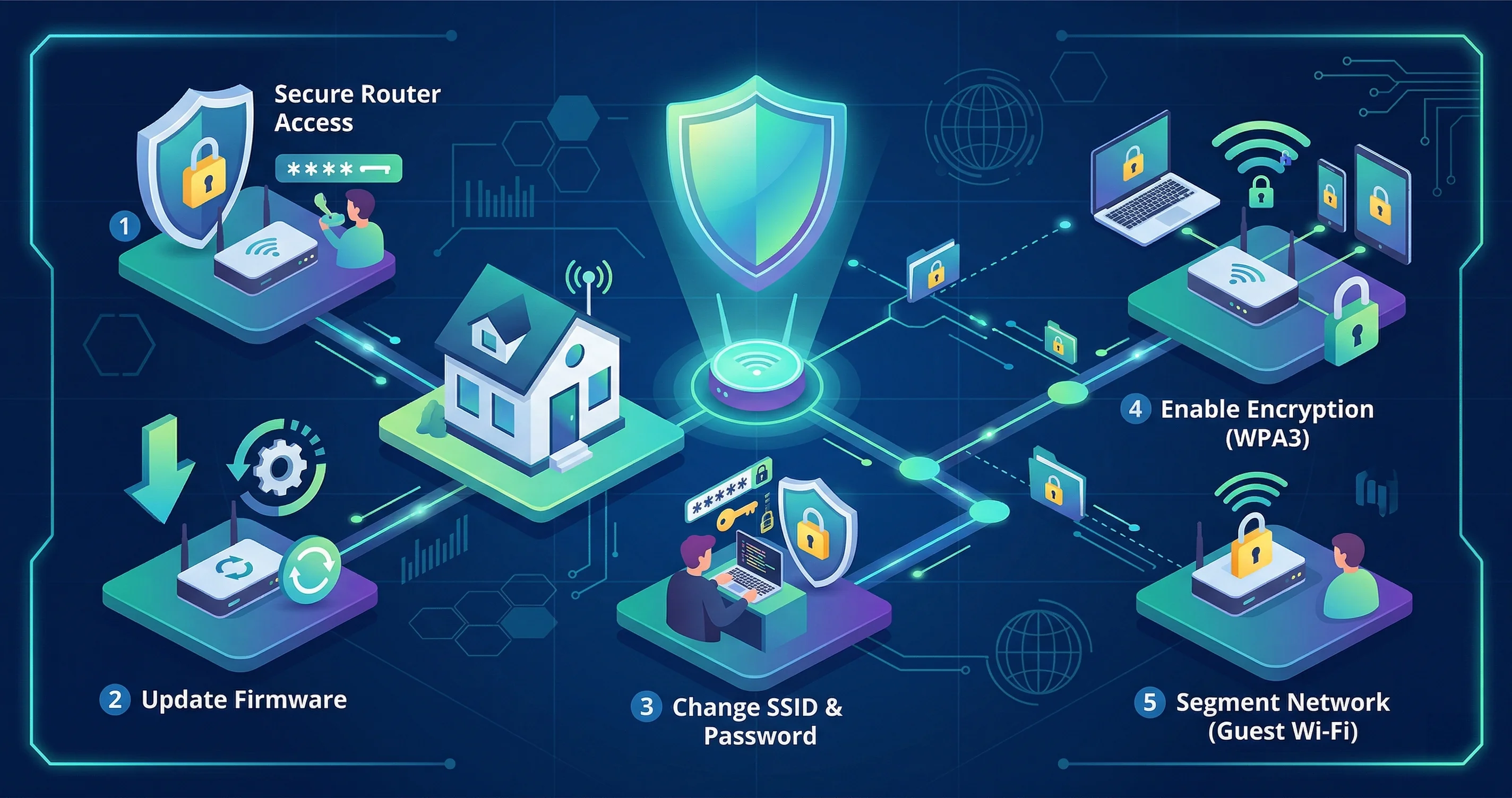
Your home router is the gateway between your personal devices and the internet—and attackers know it. Default configurations, weak passwords, and outdated firmware make home networks easy targets. These five steps close the most common vulnerabilities without requiring technical expertise.
Step 1: Change Default Admin Credentials
Every router ships with a default admin username and password (often literally “admin” / “password”). Attackers scan for routers with default credentials as a first step in any home network attack. Log into your router’s admin panel (usually at 192.168.1.1 or 192.168.0.1), and set a unique, strong password for the admin account. Store it in your password manager.
Step 2: Update Router Firmware
Router manufacturers regularly release firmware updates that patch security vulnerabilities. Many routers can check for updates directly from the admin panel under a “Firmware” or “Advanced” section. Enable automatic updates if your router supports them. If your router is more than five years old and no longer receiving updates, consider replacing it—unsupported hardware is an ongoing liability.
Step 3: Use WPA3 Encryption
Ensure your Wi-Fi network uses WPA3 (or at minimum WPA2-AES) encryption. WPA and WEP are obsolete and can be cracked in minutes with freely available tools. While in the wireless settings, also disable WPS (Wi-Fi Protected Setup)—the convenience feature has known vulnerabilities that allow attackers to bypass your password.
Set a strong, unique Wi-Fi password. Avoid dictionary words. A passphrase like correct-horse-battery-staple-7 is both memorable and resistant to brute force.
Step 4: Create a Guest Network for IoT Devices
Smart TVs, thermostats, cameras, and other IoT devices are convenient but often poorly secured with infrequent firmware updates. Isolate them on a separate guest network so that if one device is compromised, the attacker cannot pivot to your laptops and phones on the main network. Most modern routers support a guest SSID in the wireless settings.
Step 5: Enable the Firewall and Disable Remote Management
Confirm that your router’s built-in firewall is enabled—it usually is by default, but it’s worth verifying. Disable remote management if you don’t use it; this closes off the admin panel from the public internet. If you do need remote access, use a VPN rather than exposing the admin interface directly.
Going Further
A Practical Setup Checklist
Start with the router admin account. Many people change the Wi-Fi password but leave the router’s admin password untouched. That is the password used to change DNS settings, open ports, update firmware, and control the network itself. Make it unique and store it in your password manager.
Next, confirm that your Wi-Fi is using WPA2-Personal or WPA3-Personal. If the router still allows WEP or WPA, disable those modes. They are obsolete. Use a long passphrase that is not reused anywhere else. A sentence-style passphrase is easier to share with family and harder to guess than a short password with symbols.
Then review remote administration. Most home users do not need to manage their router from the public internet. If remote admin is enabled, disable it unless you have a specific reason and understand the risk.
Guest And IoT Separation
Guest networks are not just for visitors. They are useful for devices you do not fully trust: smart TVs, cheap cameras, light switches, voice assistants, and random gadgets that rarely receive updates. Put those devices on a guest or IoT network when your router supports it.
The goal is containment. If an IoT device is compromised, it should not have easy access to your laptop, NAS, work machine, or personal documents. Some routers include an “allow guests to access local network” toggle. Keep that off for real isolation.
DNS And Updates
Router firmware updates matter because the router is exposed to more risk than most devices in your home. Check the vendor’s update page or the router admin panel. If your router has not received updates in years, that is a sign to replace it.
DNS filtering can add a useful layer. Services like Quad9, Cloudflare for Families, or NextDNS can block known malicious domains before a device connects. DNS filtering is not a complete security solution, but it helps with phishing links, malware callbacks, and accidental visits to suspicious domains.
Common Warning Signs
Unexpected devices on the network deserve attention. So do router settings that changed without you touching them, repeated browser certificate warnings, unknown port-forwarding rules, or internet slowdowns that coincide with a device behaving strangely.
Do not panic if you see a device name you do not recognize immediately. Phones, tablets, and smart devices often show vague manufacturer names. Compare MAC addresses, disconnect unknown devices, and rename known devices in the router interface when possible.
What I Would Do In Practice
For a normal home, I would use a modern router with automatic security updates, WPA3 or WPA2, a unique admin password, and a separate guest network for visitors and IoT devices. I would disable WPS and remote administration. I would also keep a simple inventory of important devices so unknown connections stand out.
The goal is not to build an enterprise network at home. The goal is to remove easy wins for attackers. Default passwords, outdated firmware, weak Wi-Fi encryption, and flat networks are easy wins. Fix those and your home network is already in much better shape than the average setup.
Once these basics are in place, consider checking your connected devices list regularly for unfamiliar MAC addresses, and set up DNS-over-HTTPS (DoH) on your router or devices to prevent ISP snooping on your DNS queries. A small time investment in network hygiene significantly reduces your household’s attack surface.