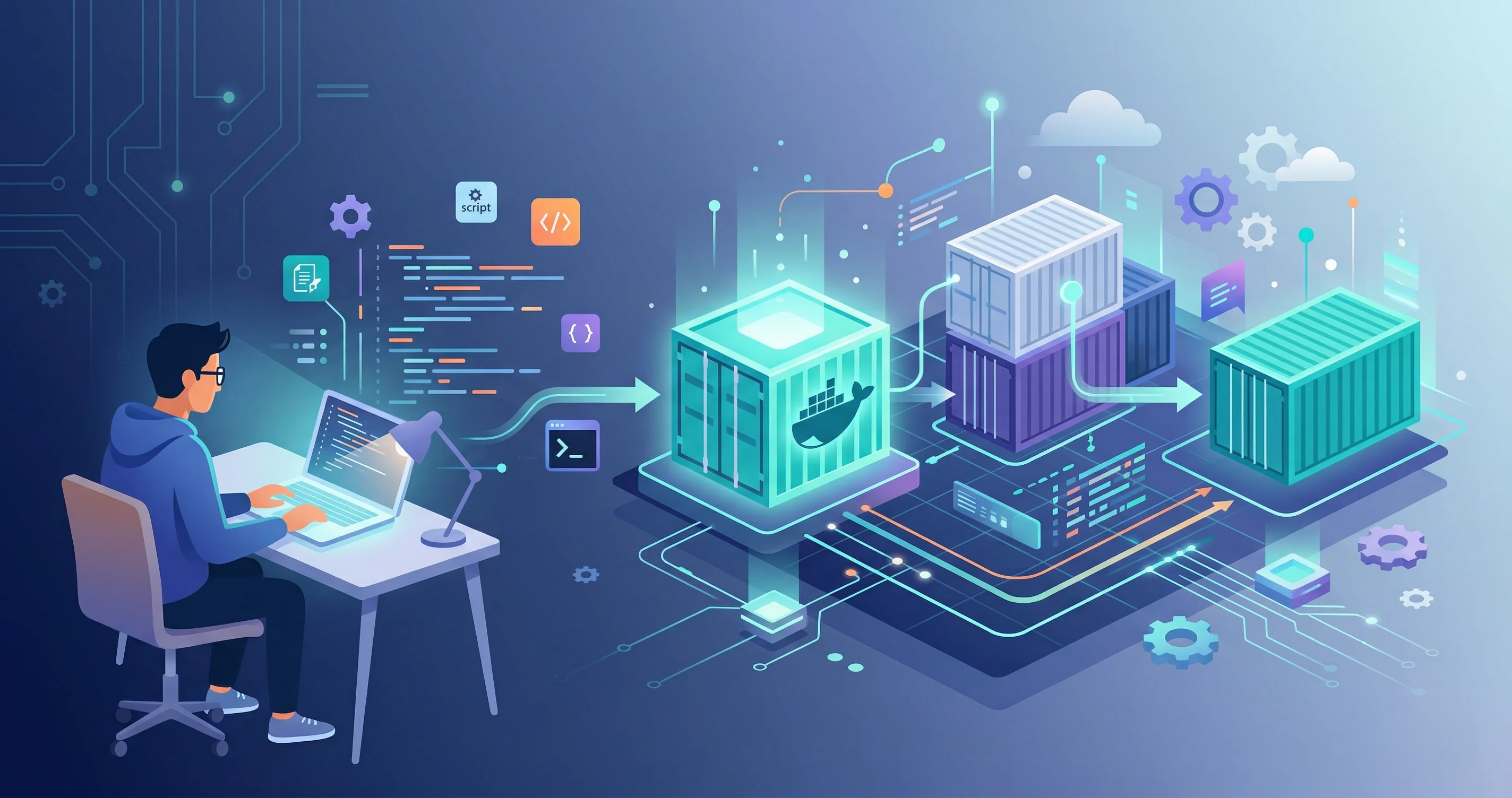
Containerization changed how software gets built and shipped. Docker made containers approachable, and understanding the basics will make you a more versatile developer regardless of your specialty. This guide walks you through running your first container in under ten minutes.
What Is a Container?
A container packages an application with everything it needs to run—code, runtime, libraries, and configuration—into a single portable unit. Unlike virtual machines, containers share the host OS kernel, making them lightweight and fast to start. The key benefit: if it runs in the container on your laptop, it will run the same way in production.
Installing Docker
Download Docker Desktop from the official site for macOS or Windows. On Linux, install the Docker Engine package for your distribution. After installation, verify everything works:
docker --version
docker run hello-world
The hello-world command pulls a small test image and runs it. If you see a success message, Docker is working correctly.
Running Your First Real Container
Let’s run an Nginx web server:
docker run -d -p 8080:80 --name my-nginx nginxBreaking this down:
-druns the container in the background (detached mode)-p 8080:80maps port 8080 on your machine to port 80 inside the container--name my-nginxgives the container a memorable namenginxis the image to use (pulled from Docker Hub automatically)
Open http://localhost:8080 in your browser—you should see the Nginx welcome page. To stop it: docker stop my-nginx.
Key Concepts
Images are read-only templates used to create containers. Containers are running instances of images. Docker Hub is the default public registry where official images live.
Volumes persist data beyond a container’s lifetime: docker run -v /host/path:/container/path. Without a volume, data written inside a container disappears when it stops.
Environment variables pass configuration into containers: docker run -e DATABASE_URL=postgres://... myapp.
Writing a Dockerfile
A Dockerfile defines how to build your own image:
FROM node:22-alpine
WORKDIR /app
COPY package*.json ./
RUN npm install
COPY . .
EXPOSE 3000
CMD ["node", "server.js"]
Build and run it:
docker build -t my-node-app .
docker run -p 3000:3000 my-node-app
Next Steps
A Practical Local Workflow
The easiest way to make Docker useful is to start with one small local problem. Pick an app that has a runtime dependency, such as Node, Python, Postgres, or Redis, and containerize only the piece that causes setup friction. You do not need to move your entire workflow into containers on day one.
For a Node app, the first useful Dockerfile usually does three things: installs dependencies in a predictable environment, copies the application code, and starts the same command every developer should run. That makes onboarding much cleaner. Instead of asking a teammate to install the right Node version, global packages, and environment variables by hand, you can give them a repeatable container command.
Use a .dockerignore file early. New Docker users often copy node_modules, local logs, .git, and build output into the image without realizing it. That makes builds slow and sometimes leaks files that should never be inside an image.
Do not put secrets in the Dockerfile. Anything baked into an image can be inspected later. Pass secrets through environment variables, a local .env file used by Compose, or your deployment platform’s secret manager.
Common Mistakes To Avoid
The first mistake is treating a container like a tiny virtual machine. A container should run one main process and be easy to replace. If you need to SSH into it constantly, manually edit files inside it, or keep it alive with a shell, the workflow is fighting the container model.
The second mistake is ignoring image size. A beginner Dockerfile often starts from a full operating system image, installs a large toolchain, and keeps build dependencies in the final image. It works, but it is slower to download, slower to scan, and carries more security surface. For production images, learn multi-stage builds. Build with a larger image, then copy only the compiled app or runtime files into a smaller final image.
The third mistake is forgetting persistence. Containers are disposable. If a database writes important data inside the container filesystem and you remove the container, the data goes with it. Use named volumes for local databases and explicit backups for anything important.
Troubleshooting Your First Container
If the container exits immediately, check logs first with docker logs. If a port does not respond, confirm the container is still running with docker ps, then check that the port mapping is in the right direction. The format is hostPort:containerPort, so 8080:80 means your browser visits port 8080 on your laptop and Docker forwards it to port 80 inside the container.
If an image will not rebuild after you change dependencies, remember that Docker caches each layer. A common pattern is to copy dependency manifests first, install dependencies, then copy the rest of the source code. That lets Docker reuse dependency installation until package.json, package-lock.json, or the equivalent file changes.
What I Would Do In Practice
For local development, I would start with Docker Compose rather than a pile of one-off docker run commands. Compose gives the project a readable source of truth: app, database, ports, volumes, and environment variables in one file. Keep the first version boring. Make it easy to run, easy to stop, and easy to delete.
For production, I would keep the image minimal, pin important versions, run as a non-root user where possible, and scan the image in CI. Docker is not a security boundary by itself, but a disciplined image build makes deployment more predictable and easier to review.
The goal is not to use Docker everywhere. The goal is to remove “works on my machine” from the parts of your project where environment drift wastes time.
Once comfortable with single containers, explore Docker Compose for orchestrating multi-container applications—a database, a backend, and a frontend running together with a single docker compose up. That’s where Docker becomes genuinely transformative for local development.